- The PR description should contain a link to the ticket or if the branch name starts with the ticket id / number.
- For Jira tickets, you should follow the instructions in [Jira Integration](https://qodo-merge-docs.qodo.ai/core-abilities/fetching_ticket_context/#jira-integration) in order to authenticate with Jira.
In addition, this feature will evaluate how well a Pull Request (PR) adheres to its original purpose/intent as defined by the associated ticket or issue mentioned in the PR description.
Each ticket will be assigned a label (Compliance/Alignment level), Indicates the degree to which the PR fulfills its original purpose, Options: Fully compliant, Partially compliant or Not compliant.
There are two ways to authenticate with Jira Cloud:
**1) Jira App Authentication**
The recommended way to authenticate with Jira Cloud is to install the Qodo Merge app in your Jira Cloud instance. This will allow Qodo Merge to access Jira data on your behalf.
Installation steps:
1. Click [here](https://auth.atlassian.com/authorize?audience=api.atlassian.com&client_id=8krKmA4gMD8mM8z24aRCgPCSepZNP1xf&scope=read%3Ajira-work%20offline_access&redirect_uri=https%3A%2F%2Fregister.jira.pr-agent.codium.ai&state=qodomerge&response_type=code&prompt=consent) to install the Qodo Merge app in your Jira Cloud instance, click the `accept` button.<br>
You can create an API token from your Atlassian account:
1. Log in to https://id.atlassian.com/manage-profile/security/api-tokens.
2. Click Create API token.
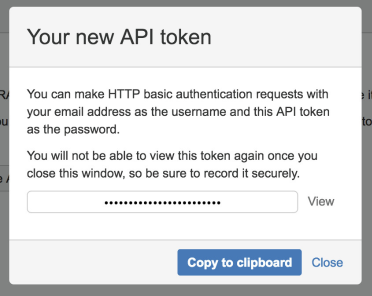
3. From the dialog that appears, enter a name for your new token and click Create.
4. Click Copy to clipboard.
{width=384}
5. In your [configuration file](https://qodo-merge-docs.qodo.ai/usage-guide/configuration_options/) add the following lines:
1. Create a [Personal Access Token (PAT)](https://confluence.atlassian.com/enterprise/using-personal-access-tokens-1026032365.html) in your Jira account
To integrate with Jira, you can link your PR to a ticket using either of these methods:
**Method 1: Description Reference:**
Include a ticket reference in your PR description using either the complete URL format https://<JIRA_ORG>.atlassian.net/browse/ISSUE-123 or the shortened ticket ID ISSUE-123.
**Method 2: Branch Name Detection:**
Name your branch with the ticket ID as a prefix (e.g., `ISSUE-123-feature-description` or `ISSUE-123/feature-description`).
!!! note "Jira Base URL"
For shortened ticket IDs or branch detection (method 2 for JIRA cloud), you must configure the Jira base URL in your configuration file under the [jira] section: